Building a Simple AI with the Sente GTP Module
One of the required GTP commands that all programs that
implement GTP are required to implement is the genmove
command. This command asks the associated engine to make
a move. Sente provides utilities that allow you to change
the functionality of the genmove command with custom
code.
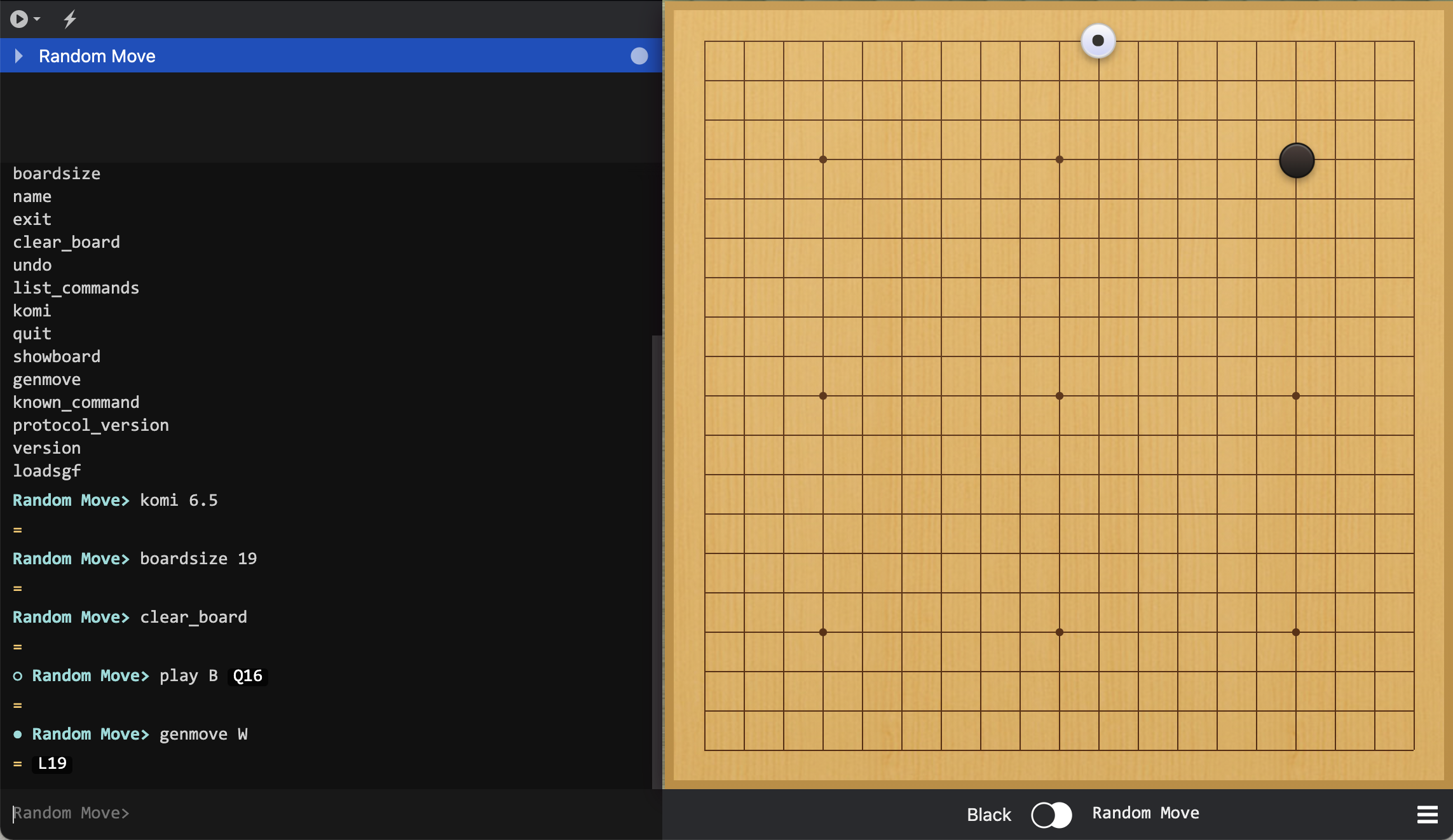
In this tutorial, we will learn how to override genmove
and use it to create a simple GTP AI that plays random
moves using sente.
Setting Up the Python file
To begin, let’s set up a GTP interpreter in a python file. We will copy most of the code from the previous section Creating an Interactive GTP Shell.
 1"""
 2
 3Author: Arthur Wesley
 4
 5"""
 6
 7from sente import GTP
 8
 9
10def main():
11    """
12
13    main method
14
15    """
16
17    session = GTP.Session("random_move", "0.0.1")
18
19    while session.active():
20
21        response = session.interpret(input(""))
22        print(response)
23
24
25if __name__ == "__main__":
26    main()
The above is equivalent to the code in the aforementioned section, only with proper python formatting. Running the file will open a GTP session.
(venv) $ python random_move.py
# begin executing commands
However, so far we haven’t changed the functionality of
the genmove command. Trying to call the genmove command
with a GTP session where no GenMove has been registered
will cause an exception:
(venv) $ python random_move.py
genmove B
Traceback (most recent call last):
  File "random_move.py", line 26, in <module>
    main()
  File "random_move.py", line 21, in main
    response = session.interpret(input(""))
RuntimeError: genmove has not been implemented by this engine, please register a valid function
Overwriting Genmove
The genmove command is overwritten by adding the
Session.GenMove decorator to the function, which
registers it internally to be called whenever the GTP
interpreter receives the genmove commmand.
To begin, we define a function that returns a random legal
move. The sente.game object has a handy method that
generates a list of all legal moves. We can obtain the
current game object the GTP Engine uses and then use
the random.choice function to choose a random move.
 1"""
 2
 3Author: Arthur Wesley
 4
 5"""
 6
 7import random
 8
 9from sente import GTP
10
11
12def main():
13    """
14
15    main method
16
17    """
18
19    session = GTP.Session("random_move", "0.0.1")
20
21    def gen_move():
22        """
23
24        generates a random move
25
26        :return: random move
27        """
28
29        return random.choice(session.game.get_legal_moves())
30
31    while session.active():
32
33        response = session.interpret(input(""))
34        print(response)
35
36
37if __name__ == "__main__":
38    main()
Next, we need to add the decorator to the gen_move
method to register it and override the default genmove
command.
Importantly, the Session.GenMove decorator only
accepts functions that have
typing hints.
This is because GTP is a strongly typed protocol meaning that
only predefined data types can be transferred. Additionally,
section 6.3.3 of the GTP spec
requires that the genmove command the following signature:
- param color
Color of the player to generate a move for
- return
Move object containing the desired move
Note
the color argument is ignored here for the sake of simplicity, but in general it should not be ignored.
Adding the decorators and type hints we get the following code:
 1"""
 2
 3Author: Arthur Wesley
 4
 5"""
 6
 7import random
 8
 9import sente
10from sente import GTP
11
12
13def main():
14    """
15
16    main method
17
18    """
19
20    session = GTP.Session("random_move", "0.0.1")
21
22    @session.GenMove
23    def gen_move(color: sente.stone) -> sente.Move:
24        """
25
26        generates a random move
27
28        :param color: Color of the player to generate a move for
29        :return: Move object containing the desired move
30        """
31
32        return random.choice(session.game.get_legal_moves())
33
34    while session.active():
35
36        response = session.interpret(input(""))
37        print(response)
38
39
40if __name__ == "__main__":
41    main()
We can now run our program and watch our AI generate hillariously awful moves
(venv) $ python random_move.py
genmove B
= K18
Note
you do not need to play the generated move into
the session’s sente.Game object. Sente does this
automatically
Connecting the AI to Sabaki
Note
the following instructions are based on a Unix environment. If using windows, adapt accordingly (use backslashes, batch files, etc. instead)
In order for another Go program to talk to this AI, the host program needs to spawn our program as a subprocess. In this example, we will see how this is done for Sabaki, a popular Go GUI program.
Sabaki only executes one system command to spawn the engine subprocess. Unfortunately, if your engine’s libraries are stored in a virtual environment it will take multiple system commands to activate the environment and run the program. a simple way around this is to write a short shell script that activates and runs the engine.
1#!/bin/bash
2
3cd "~/path/to/your/project" # absolute path, since the current directory of Sabaki is arbitrary
4source venv/bin/activate
5python random_move.py
With this shell script created, the steps to run the engine in Sabaki are as follows.
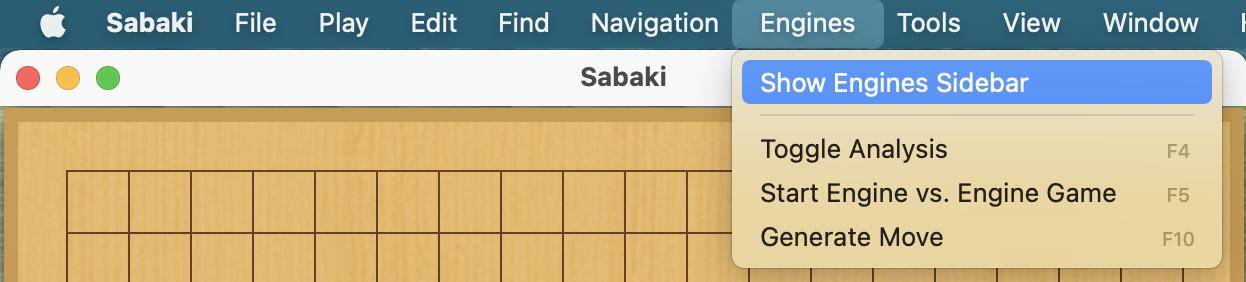
Open the
Engines Sidebarfrom theEngines Menu.
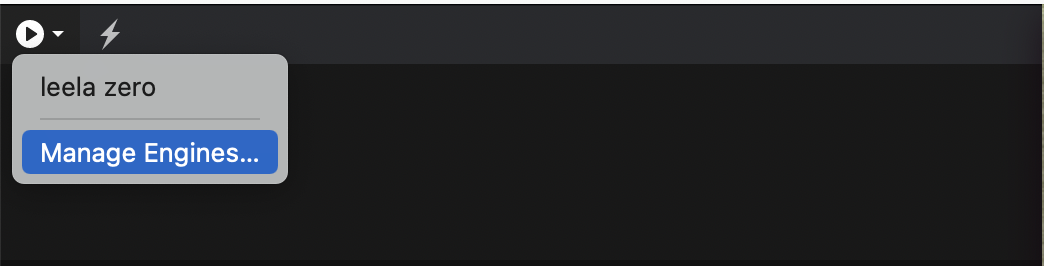
Click on the
Attach Engine...button and select “Manage Engines”.
Click “Add”.
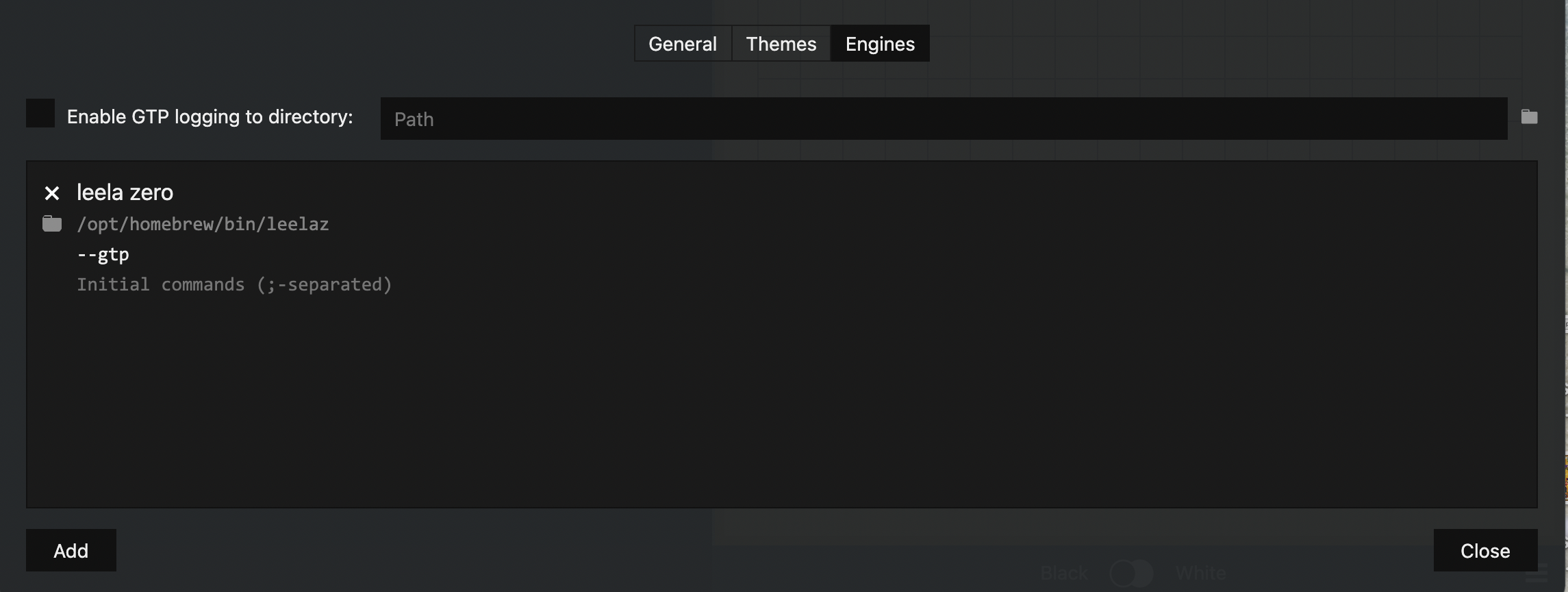
Name the AI
Random Moveand for the path, put the path to your shell script.
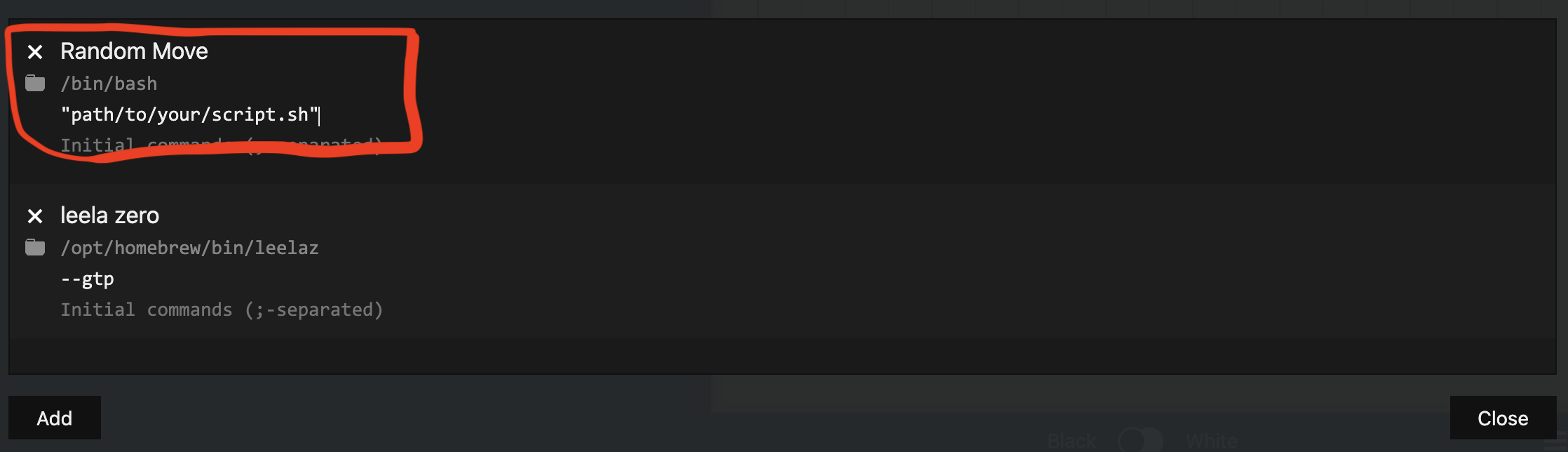
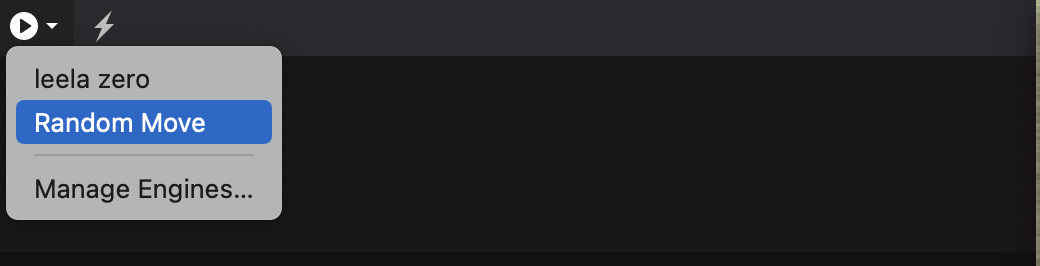
Close the “Manage Engines” Window. “Random Move” should now appear under the options for
Attach Engine.
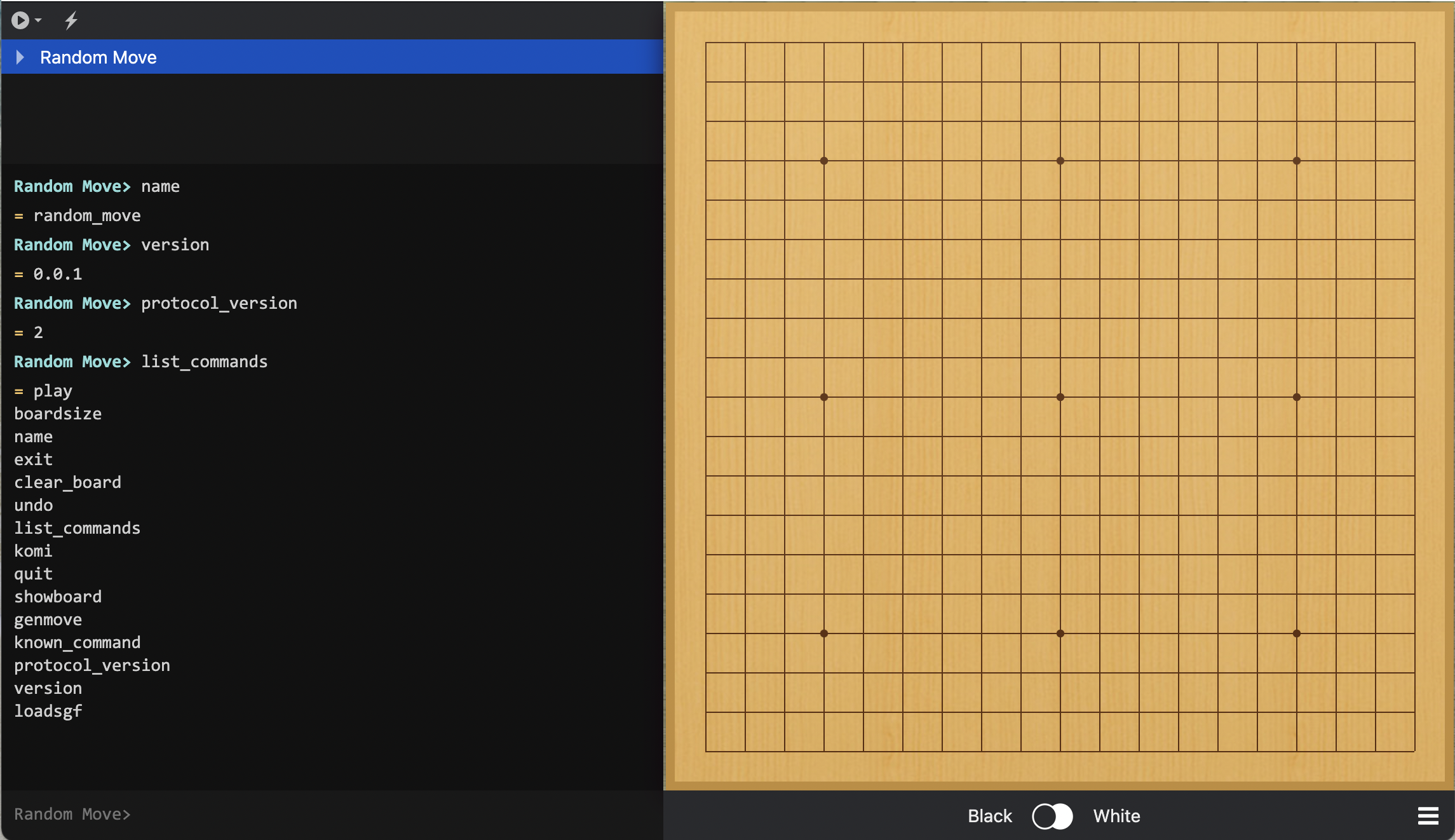
Run “Random Move”.
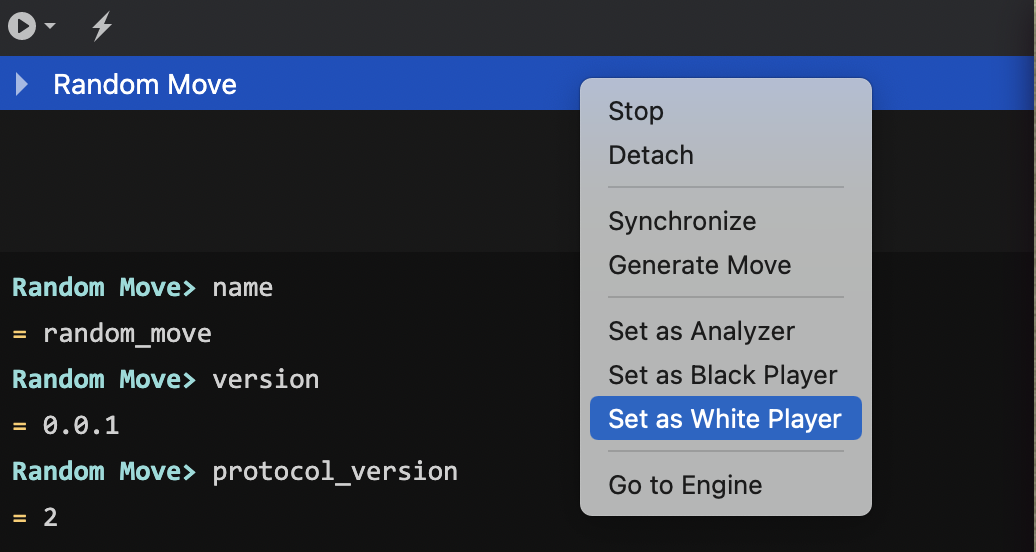
Assign Random Move to be the White Player.
Begin Play.